
Alight Motion PC: How to Download on Windows (2027)
There is no official Alight Motion PC app. Alight Motion’s Help Center lists Windows and macOS as unsupported. You can still use Alight Motion for PC by running the Android app in an emulator such as BlueStacks or LDPlayer, or on a Chromebook that runs Android apps. Weak hardware will lag.
- No official PC app
- Emulator route
- Windows 10 & 11
Is there an official Alight Motion for Windows?
No. The Help Center article on minimum requirements (last updated 27 June 2025) sorts devices into three groups:
Compatible:
Android 6.0 or higher and iOS 14.4 or higher.
Partially compatible:
Android tablets and Chromebooks that can run Android apps.
Not compatible:
Android 5.x and lower, and Windows or macOS.
The same article says Alight Motion only supports users of the version from Google Play or the Apple App Store. Any .exe file or “PC version” download that carries the Alight Motion name did not come from the developer.
Some sites also claim a native Mac app. The Help Center lists macOS as not compatible, and the App Store description is less clear, so we cover that separately in Alight Motion for Mac. If you want the phone version instead, see Alight Motion for iOS.
Ways to use Alight Motion on a computer
| Method | Status | Suits | Main limit |
|---|---|---|---|
| Android emulator on Windows (BlueStacks, LDPlayer) | Unofficial. The Help Center lists Windows as not compatible | Windows PCs and laptops with virtualization | Needs RAM and disk space; touch input is emulated |
| Chromebook with Android app support | Partially compatible, per the Help Center | Chromebooks that can run Android apps | Interface is not designed for Chromebooks |
| Windows Subsystem for Android | Ended. Microsoft stopped support on 5 March 2025 | Nobody now | Not an option |
| A different desktop editor | Another app, not Alight Motion | Windows and Mac users who want a native app | A different interface to learn |
What an Android emulator does
An Android emulator is a program that creates a virtual Android phone inside Windows. It uses your processor’s virtualization features to run Android apps, which is why virtualization has to be on and why the emulator needs its own share of memory and disk. Alight Motion runs inside that virtual phone, not directly on Windows, so the app sees Android and the emulator turns your mouse and keyboard into touch input. The extra layer is also why the same project can feel slower on a PC than on a mid-range phone.
Alight Motion PC requirements
Three sets of requirements apply at once, and guides often mix them up.
Alight Motion itself, inside the emulator’s Android:
Android 6.0 or higher (7.0 or higher recommended), at least 1.5 GB of RAM (more than 2 GB recommended), and Play Protect certified status, according to the Help Center.
The emulator on your PC:
the numbers in the comparison table below.
Windows itself:
a 64-bit PC with virtualization turned on in the BIOS or UEFI.
To check virtualization, open Task Manager, go to the Performance tab, select CPU, and read the Virtualization line. If it says Disabled, turn on Intel VT-x or AMD-V (the name varies by maker) in the BIOS or UEFI before you install an emulator.
Check your PC in two minutes
Windows version:
press the Windows key + R, type winver, and press Enter.
RAM:
open Settings > System > About and read Installed RAM.
Free disk space:
open File Explorer > This PC and read the free space on the drive where the emulator will go.
Virtualization:
Task Manager > Performance > CPU, as above.
Alight Motion Windows 10 vs Windows 11
BlueStacks lists Windows 10 or later for its current versions, and its Hyper-V-compatible build needs Windows 10 version 1903 or later, or Windows 11. LDPlayer’s page also lists Windows 10. Microsoft ended support for Windows 10 on 14 October 2025, so a Windows 10 PC still runs the emulators but no longer receives regular security updates unless you enrolled in extended updates.
Alight Motion PC download: how to install it on Windows with an emulator
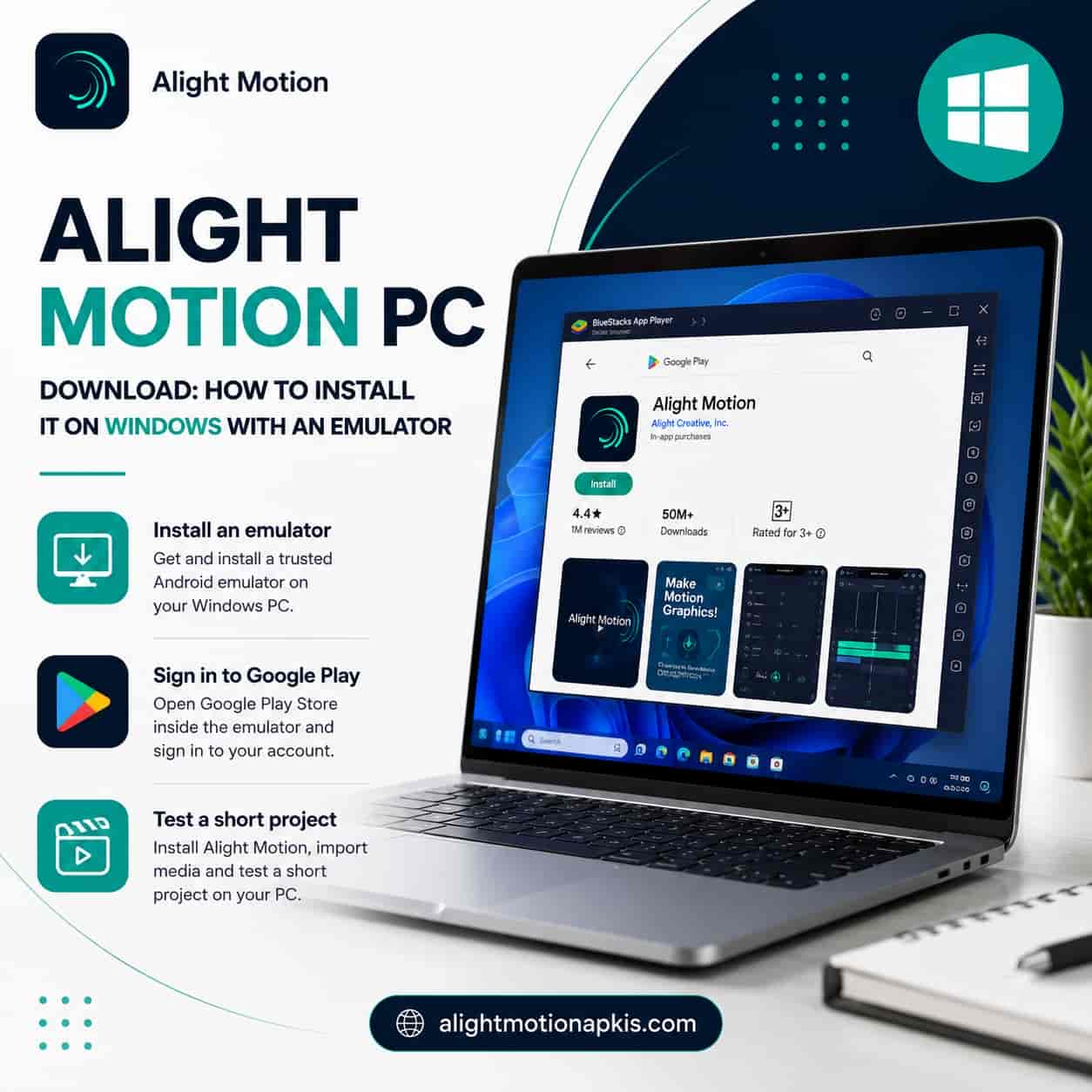
There is no Alight Motion installer for Windows, so an “Alight Motion PC download” really means two downloads: an emulator from its maker, then the app from Google Play inside that emulator.
- Turn on virtualization as described above, and close heavy programs.
- Download the emulator from its official website only. Use bluestacks.com for BlueStacks or ldplayer.net for LDPlayer. Installers from other sites are a common way to pick up unwanted software.
- Install and start the emulator. The first launch can take a while.
- Sign in to Google Play with a Google account.
- Search for Alight Motion and install it from Google Play. If it does not appear, the Help Center says the app is either not supported on that device or not available in your country.
- Open Alight Motion and make a short test project first. Add a few layers and keyframes and export it. This shows whether your PC copes before you start a long edit.
Common mistakes:
- Downloading the emulator or the app from a third-party site instead of the maker’s site or Google Play.
- Skipping virtualization, which is a common reason an emulator fails to start.
- Giving the emulator almost all your RAM, which leaves too little for Windows.
- Expecting phone gestures such as pinch to work without checking how the emulator maps them.
Which downloads are genuine
Only three sources are involved in a normal setup: the emulator maker’s own website, Google Play inside the emulator, and your Google account. Be suspicious of a page that offers a file named Alight Motion for Windows, a “free Pro” download button, or an emulator installer hosted on a different domain. The Help Center confirms the developer provides support only for versions from Google Play and the App Store.
A note on your Google account
Signing in to an emulator gives that virtual device access to the Google account you use. If you share the PC or prefer to keep work and personal accounts apart, sign in with an account you are comfortable using on it, and sign out when you finish.
Alight Motion emulator comparison: BlueStacks vs LDPlayer
The two emulators named most often have different published requirements. These figures come from each maker’s own page.
| Requirement | BlueStacks 5 | LDPlayer 9 |
|---|---|---|
| Minimum RAM | 4 GB | 2 GB |
| Recommended RAM | 8 GB or more | 16 GB or more |
| Free disk space | 5 GB minimum; SSD recommended | 36 GB minimum |
| Windows version | Windows 7 or later listed; current versions need Windows 10 or later | Windows 7 to 10 listed on the LDPlayer 9 page |
| Virtualization | Recommended; must be enabled for the recommended setup | Required (Intel VT-x or AMD-V enabled in the BIOS) |
| Graphics | Up-to-date drivers recommended | DirectX 11 and OpenGL 2.0 drivers |
The practical difference is disk space. A PC with little free storage suits BlueStacks, while LDPlayer’s low RAM minimum helps only if you can spare the disk. We have not benchmarked Alight Motion on either emulator, and neither maker lists Alight Motion as a supported app, so pick by requirements and test with a short project. MEmu and NoxPlayer also exist, but we have not checked their current pages.
Alight Motion PC without BlueStacks: what actually works
You do not have to use BlueStacks. LDPlayer and other emulators run the same Android app. What you cannot do on Windows is skip the emulator layer entirely:
Windows Subsystem for Android
was the built-in route on Windows 11, but Microsoft ended support for it and for the Amazon Appstore on Windows on 5 March 2025.
A Chromebook
that supports Android apps can install Alight Motion from Google Play directly. The Help Center calls this partial compatibility, with all features available.
A native desktop editor
avoids emulation altogether, at the cost of a different interface. Our Alight Motion vs other video editors page compares the main options.
Alight Motion for laptop: Windows laptops and Chromebooks
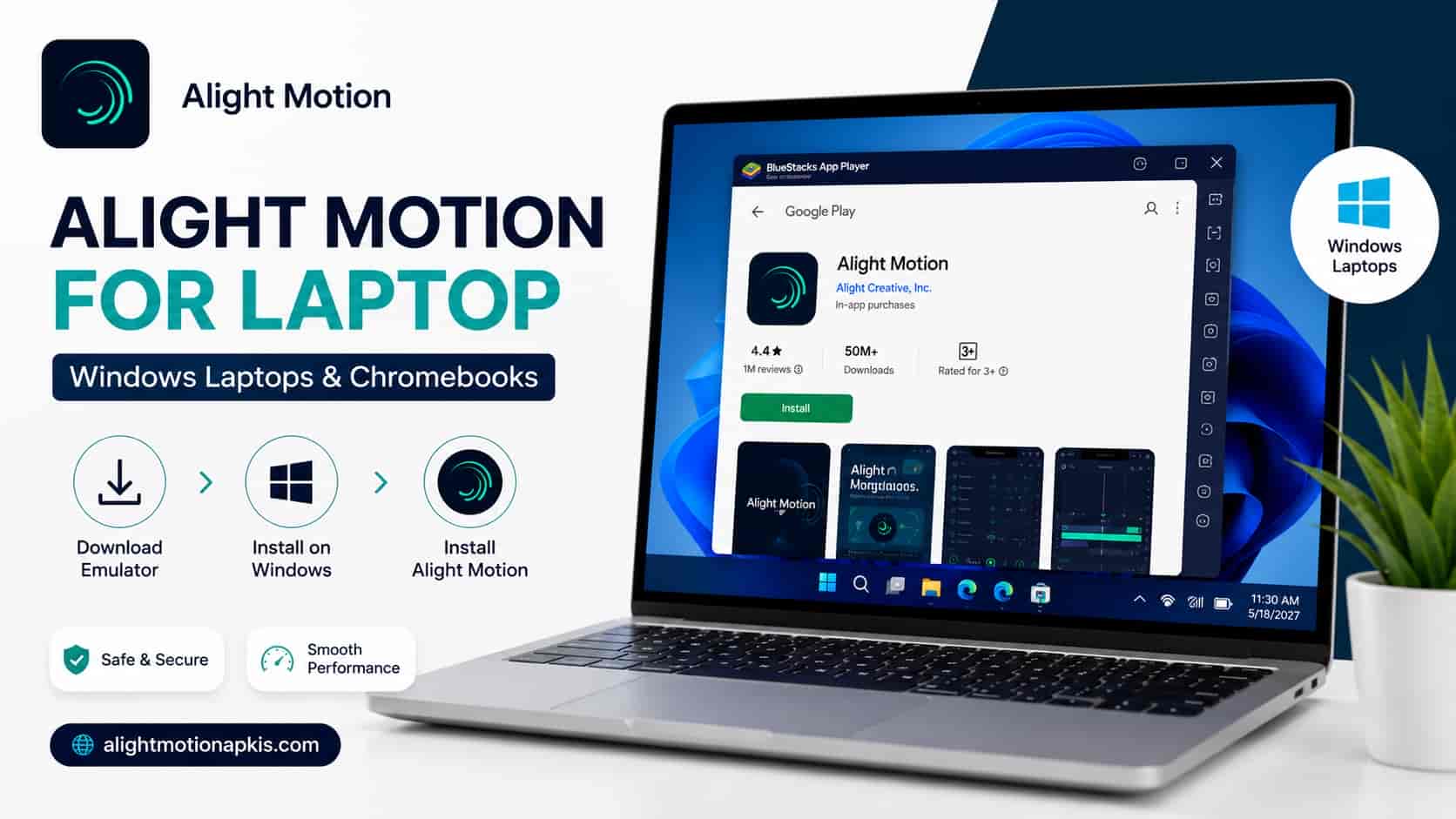
A Windows laptop follows the same emulator steps as a desktop PC. Two laptop-specific points matter: keep the charger connected, and set the Windows power mode to favor performance, because battery-saver modes slow the processor and make the emulator lag. On a Chromebook, check whether your model can run Android apps using the list that the Help Center links to.
Editing with a mouse instead of touch
Alight Motion’s interface was built for touchscreens, and the Help Center says it is not designed for Chromebooks either. In an emulator, mouse clicks stand in for taps, so precise handles for masks and curves can be easier to hit, while multi-finger gestures need an on-screen alternative or a key mapping that the emulator provides. How well this works differs between emulators, so check it in your test project.
What to expect from the emulator route
Treat the emulator route as a workaround. Alight Motion lists Windows as not compatible, so if something breaks, the developer’s support is unlikely to treat the emulator as a supported device. Performance depends on your processor, memory, disk, and the emulator version, and it can change after an emulator or app update. Projects that run smoothly on a phone may need a lower preview resolution on a PC. Keep copies of finished exports and project files, so an emulator reset or reinstall does not cost you work.
Alight Motion PC lag fix: seven checks that help
- Confirm virtualization is enabled. Both emulator makers list it as part of their recommended or required setup.
- Give the emulator enough CPU cores and RAM in its settings, but leave memory for Windows.
- Close browsers and other heavy programs while you edit.
- Install the emulator on an SSD if you have one. BlueStacks recommends SSD storage.
- Update your graphics drivers, and update the emulator to its latest version.
- Edit at a lower project resolution while you build the animation, then raise it for the final export.
- Export in short sections if long exports fail.
For export values, see best Alight Motion export settings. For crashes, black screens, and other errors, see Alight Motion not working.
Alight Motion PC mod apk: risks, and why this guide has no steps
Searches for an Alight Motion PC mod apk lead to modified copies of the Android app. The Help Center says it only supports the authentic version from Google Play or the App Store, and warns that apps from unofficial sources may contain malware or modifications that stop the app working, may damage your device, and may cause loss or leak of projects or data.
Our assessment, not a statement from the developer: an emulator keeps Android in a virtual machine, but it still holds whatever accounts you sign in to and any folders you share with it. A modified file gives you no way to check what it does. A modified build also bypasses the paid membership that funds the app, so it is not a licensed way to get paid features. This guide therefore gives no installation steps for modified files. Our safety page covers the Android side in more detail: is the Alight Motion mod safe.
Which option suits you?
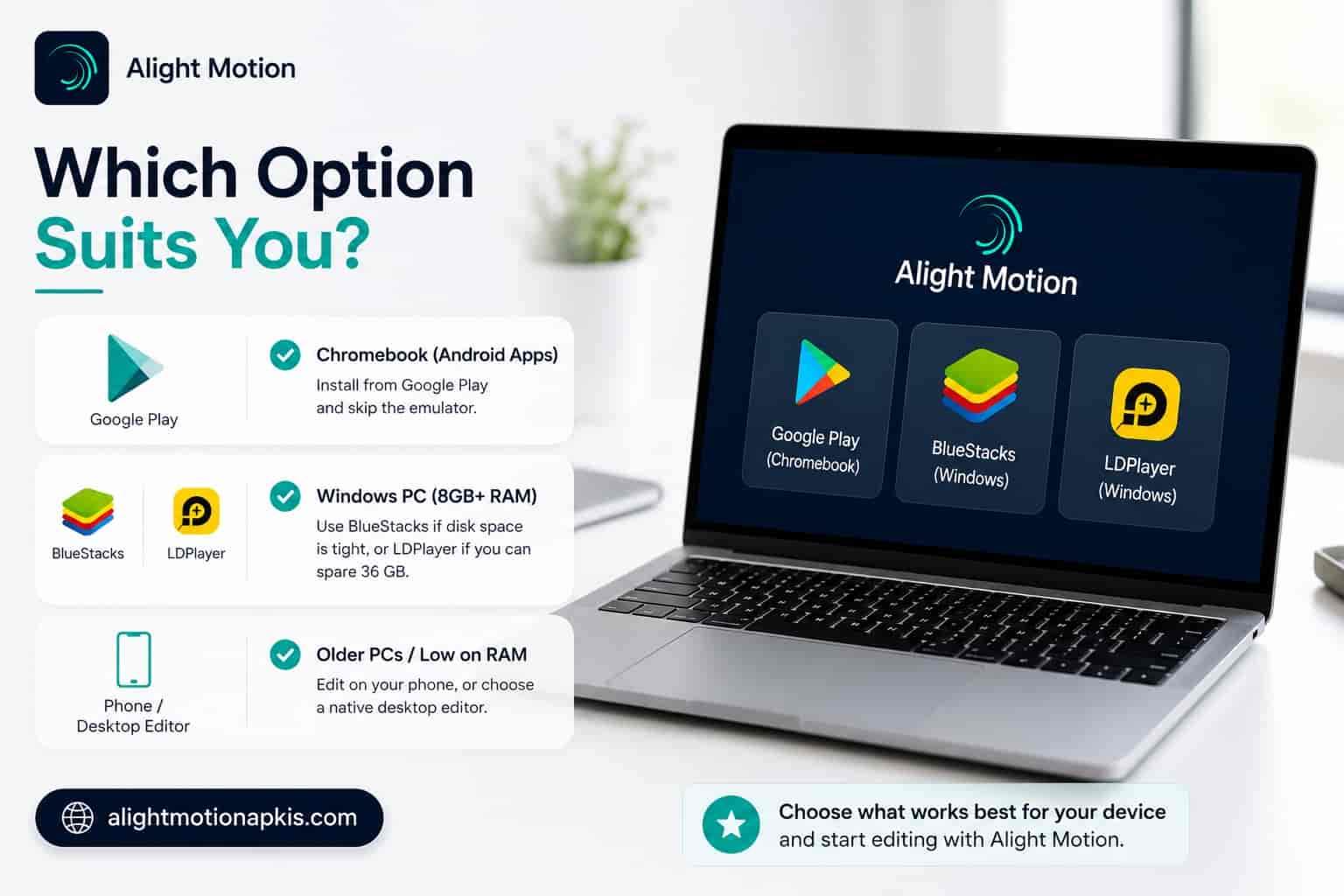
- You own a Chromebook that runs Android apps: install from Google Play and skip the emulator.
- You have a Windows PC with at least 8 GB of RAM and virtualization on: use BlueStacks if free disk space is tight, or LDPlayer if you can spare 36 GB.
- Your PC is older or short on RAM: edit on your phone, or choose a native desktop editor.
Frequently asked questions
Is there an official Alight Motion for PC?
No. Alight Motion’s Help Center lists Windows and macOS as not compatible and supports only the versions from Google Play and the App Store. Windows users run the Android app in an emulator, which is an unofficial setup.
Can I run Alight Motion on Windows 11?
Yes, through an Android emulator. BlueStacks 5 lists Windows 11 and Windows 10 version 1903 or later for its Hyper-V compatible build. Alight Motion itself has no Windows version, so the result depends on the emulator and your hardware.
Is Alight Motion free on a computer?
The app is free to download with a watermark on exports, and paid memberships remove the watermark, according to its App Store listing. Running it in an emulator does not change that. Check the Google Play listing for the Android terms.
Which emulator is best for Alight Motion?
No emulator maker lists Alight Motion as supported, and we have not benchmarked it. BlueStacks 5 needs 4 GB of RAM and 5 GB of disk. LDPlayer 9 needs 2 GB of RAM and 36 GB of disk. Choose by what your PC can spare.
How much RAM do I need?
Alight Motion needs at least 1.5 GB inside Android. BlueStacks 5 lists 4 GB for the PC and recommends 8 GB or more. LDPlayer 9 lists 2 GB and recommends 16 GB or more. More RAM gives Windows and the emulator room to work.
Why can’t I find Alight Motion PC in the emulator’s Play Store?
The Help Center says the app does not appear when the device is not supported or the app is not available in your country. Try an updated emulator version or a different emulator, and sign in with an account from a supported country.
How do I fix lag when editing on a PC?
For an Alight Motion PC lag fix, turn on virtualization, give the emulator enough CPU and RAM while leaving memory for Windows, close other programs, use an SSD, and update drivers. Edit at a lower resolution and raise it for the final export.
Does Windows Subsystem for Android still work?
No. Microsoft ended support for Windows Subsystem for Android and the Amazon Appstore on Windows on 5 March 2025. Windows users now rely on third-party emulators for Android apps.
Can I use Alight Motion on a Chromebook?
Yes, on Chromebooks that can run Android apps. The Help Center lists Chromebooks as partially compatible: all features are available, but the interface is not designed for Chromebooks.
Is a modified Alight Motion file safe to use on a PC?
It cannot be verified. The Help Center warns that apps from unofficial sources may contain malware or modifications, may damage the device, and may cause loss or leak of projects or data. Use the Google Play version.
Ready to try Alight Motion on your PC?
Start with a short test project, and check your PC against the requirements first.